Mostrando postagens com marcador Linux. Mostrar todas as postagens

7 de jan. de 2011

Configure Linux to boot without a monitor

Configure Linux to boot without a monitor: "
Many administrators/users prefer to set up their servers as headless machines. If you’re not sure what a headless machine is – it’s a PC without a monitor. This is an outstanding way to use Linux as a server as typically people install Linux servers sans GUIs. Thing is, a problem has arisen with recent iterations of Linux distributions. In recent releases (especially with Ubuntu) the distributions do not use an X configuration. This is great for end-users on desktops because the operating auto-detects the graphics chip and monitor for auto-X configuration. This is a problem for a headless server as there will be monitor attached. When Ubuntu >= 10.04 gets to the monitor detection it will freeze and your headless server is worthless.
You could work around this by plugging in a monitor, mouse, and keyboard and letting the OS boot and then removing the monitor when the boot process has finished. This is a far from ideal solution. Fortunately the Linux community has come up with a temporary work around for this issue (I’m confident the distribution developers will come up with a much better solution soon). Let’s take a look at the solution.
Warnings
This solution requires that you create an /etc/X11/xorg.conf configuration file. I assume that anyone wanting to set up a headless server isn’t afraid of manually creating/editing the xorg.conf file. If you are, make sure you back up any pre-existing xorg.conf file that might live in /etc/X11.
This guide also assumes that you already have a working server installation that you can successfully boot with an attached monitor. I will also assume you know what graphics card is in your server. You will need this information momentarily (so if you don’t know it, dig around and find out what card you are using). With that being said, let’s get on with it.
xorg.conf
The first thing you need to do is to set up the xorg.conf configuration. If one already exists, copy it to /etc/X11/xorg.conf.OLD and then erase the contents of the /etc/X11/xorg.conf file. The new contents of that file will be:
Section 'Device'
Identifier 'VNC Device'
Driver 'vesa'
EndSection

Section 'Screen'
Identifier 'VNC Screen'
Device 'VNC Device'
Monitor 'VNC Monitor'
SubSection 'Display'
Modes '1024x768'
EndSubSection
EndSection

Section 'Monitor'
Identifier 'VNC Monitor'
HorizSync 30-70
VertRefresh 50-75
EndSection

Once you have saved and closed that file you now need to edit the /etc/default/grub file and add the following line:
GRUB_CMDLINE_LINUX='nomodeset'
You can take this one step further and disable the splash screen for the boot process by setting the line:
GRUB_CMDLINE_LINUX_DEFAULT=
to “quiet” instead of “quiet splash”
Save the /etc/default/grub file and then issue the command sudo update-grub to rebuilt grub.
To test this setup go ahead and boot the machine without the monitor attached. Once you have given it plenty of time to boot you can either VNC or ssh into the machine. If you get a successful connection you are good to go. If you do not get a successful connection plug the monitor back in and see where in the process it stopped. If you have a black screen revisit the configuration and make sure everything is correct. To further troubleshoot boot the machine with the monitor plugged in and check the /var/log/Xorg.0.log file for any errors. Hopefully you will find the setup above works like a champ.

© Jack Wallen for gHacks Technology News, 2010. | Permalink | Add to del.icio.us, digg, facebook, reddit, twitter
Post tags: , , , , ,

"

2 de nov. de 2010

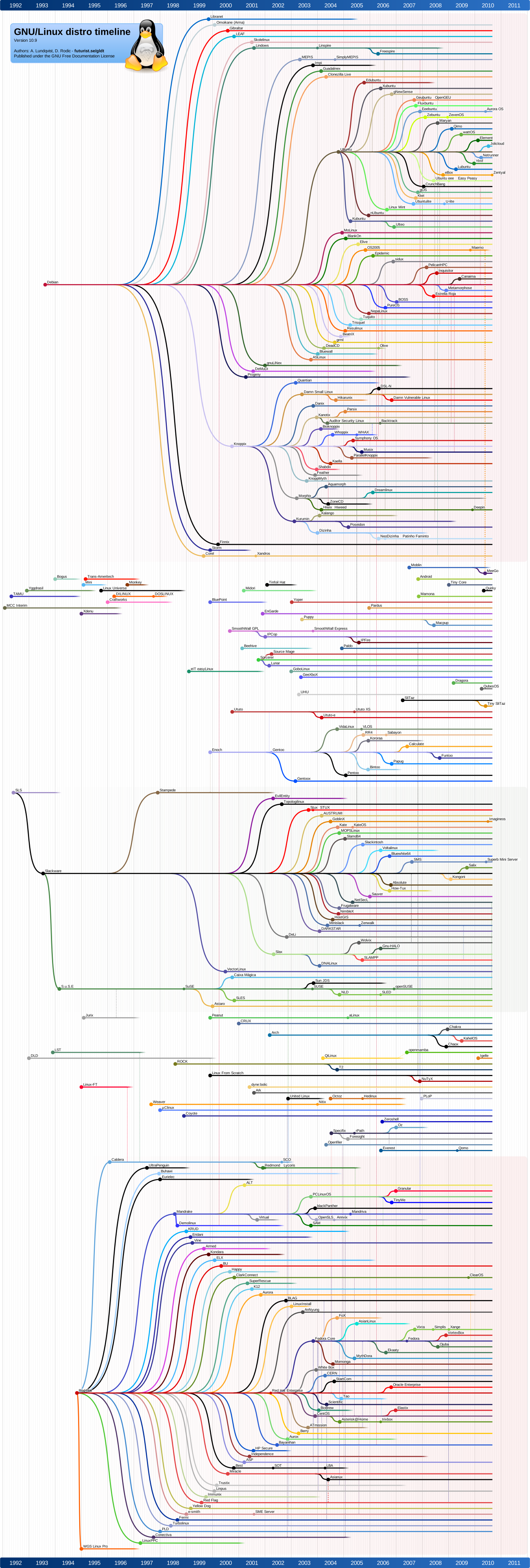
The Linux distro timeline is an extensive family tree of all things Linux

The Linux distro timeline is an extensive family tree of all things Linux: "
Filed under: ,
linuxdistrotimeline

Most commercial products run a fairly set course; you get Microsoft Office 1.5, then 1.6, 3.0, 4.0, all the way up to office 2010 (For Windows, at least). It's a fairly orderly progression, with version numbers rising over time - pretty easy to follow.

Open-source projects are a different beast, however. When enough developers don't like the direction a project is going, they sometimes just create a fork and go on developing their own product. Sometimes projects have to fork for legal reasons, and sometimes it's a business decision, too.

The bottom line is that if you could plot the Linux timeline, it would look more like a crazy family tree than like an orderly progression of versions. And what do you know, one Donjan Rodic has gone and done just that, in the form of the GNU/Linux distro timeline.

Since this is an SVG file, it's not just a static image, and is capable of all sorts of aweosme: you can use Ctrl-F to search for a specific distro, and when you click a distro's name, you are transported to its home page.

Of course, since this is such a nerdy project, it wasn't produced entirely by hand. Donjan created an application just for creating the map, and then went ahead and open-sourced it. So... who wants to use it to create a timeline of all Web browsers?
The Linux distro timeline is an extensive family tree of all things Linux originally appeared on Download Squad on Sun, 31 Oct 2010 14:20:00 EST. Please see our terms for use of feeds.

"

30 de out. de 2010

Restore the Windows Boot Loader After an Ubuntu Update

Restore the Windows Boot Loader After an Ubuntu Update: "
Will your computer not boot into Windows after installing an update on your dual-boot or Wubi Ubuntu install? Here’s how you can get your Windows boot loader back so you can easily get back to work in either OS.
We’ve mentioned before how Wubi is a great way to run Ubuntu on your Windows PC or netbook, and in general it works great. However, sometimes your system may receive updates to GRUB, and if you choose the wrong option, the next time you reboot your computer you may find that it think there’s only Ubuntu and no Windows installed on your computer.
sshot-2010-10-29-1-10-17-28

Or, perhaps, even more ominously, you boot your computer to see that it thinks it has no operating system.

sshot-2010-10-29-1-10-14-10

Often, there’s no need to panic. If you recently received an Ubuntu update, or somehow managed to mess up or remove your boot loader, it’s quick and easy to get it back using familiar Windows tools. Here’s how.

Reinstall Your Windows Boot Loader From the Windows DVD


To get back into Windows, you’ll need to reinstall your Windows boot loader. Thankfully this isn’t as difficult or time consuming as reinstalling Windows, but it will require your Windows DVD. Boot your computer from the DVD, and if it doesn’t automatically offer to let you boot from the disk, you may need to change your boot settings in the BIOS. You can usually access by pressing the F2, F10, or Delete key on the initial boot screen, depending on your computer.

image

Save the changes and reboot your computer from the Windows DVD. After a few moments, you should see the install setup screen. Select your preferred language, then click Next.

image

Your install disk is designed to install Windows on your computer, but also contains tools to help repair your existing Windows install. On the bottom left of the Install window, click the Repair your computer link to get started repairing your current install of Windows.

sshot-2010-10-29-1-11-03-18

System Recovery will automatically start scanning to see if there’s an existing Windows install with something it can easily fix automatically. You may have to wait a few minutes while it scans your computer.

sshot-2010-10-29-1-11-03-34

If your only problem is the boot loader, often it will automatically detect the problem and offer to fix it. If so, simply click Repair and restart, and your computer should be booted back into Windows as normal within minutes.

sshot-2010-10-29-1-11-06-13

Reinstall Your Boot Loader Manually From the Windows DVD


Alternately, if it doesn’t automatically detect anything to fix, you’ll have to choose your own recovery options. Click the bullet option on the top then click Next to use recovery tools to fix Windows.

sshot-2010-10-29-1-11-16-48

Now, select Command Prompt from the available recovery tools.

sshot-2010-10-29-1-11-07-06

In the command prompt window, enter the following to repair your boot loader:

bootrec /rebuildbcd

After a few moments, it should detect your Windows installation and ask if you want to add it to the boot loader. Enter Y to add it, then exit the command prompt and reboot your computer when you’re finished.

sshot-2010-10-29-1-11-08-46

Moments later, you should see your standard Windows login screen as normal, and all of your files and programs should be fine and ready to use.

sshot-2010-10-29-1-11-10-19

As you may notice, the option to boot into Ubuntu will no longer show up in your boot menu, and your computer will act like you only have Windows installed. To get your Wubi Ubuntu or full Ubuntu install accessable from the boot loader again, you’ll need to restore it as well. The easiest way is to Add Wubi Back to the Bootloader With EasyBCD. Once you’ve done that, you should be back in business, ready to use Windows or Ubuntu as you need.
"

29 de out. de 2010

The Linux credit card -- with Tux on the front and everything

The Linux credit card -- with Tux on the front and everything: "
Filed under: ,
I couldn't make this up if I tried: The Linux Foundation is now offering a platinum rewards Visa credit card. There is no annual fee, a low introductory APR -- in fact, it's a normal credit card with Tux on the front.


Every purchase you make with the Linux credit card will kick back a percentage to the Linux Foundation. The Foundation also gets $50 for every activation! In the words of the Foundation, this card is for 'those who want to support the Linux Foundation's activities while expressing their commitment to Linux. The Linux credit card is an easy way for anyone to contribute to the growth of Linux and identify themselves as supporters of the community by carrying Tux in their pocket.'


Unfortunately it's for U.S citizens only, otherwise I'd sign up right now! If you're going to rack up credit, why not do it in a way that benefits the most important software movement of the last 20 years? Why don't more charities have credit cards...?


[via Hacker News]
The Linux credit card -- with Tux on the front and everything originally appeared on Download Squad on Fri, 29 Oct 2010 06:37:00 EST. Please see our terms for use of feeds.
Read | Permalink | Email this | Comments

"

27 de out. de 2010

What is the Linux Kernel and What Does It Do?

What is the Linux Kernel and What Does It Do?: "
image
Image by ingridtaylar

With over 13 million lines of code, the Linux kernel is one of the largest open source projects in the world, but what is a kernel and what is it used for?

So What is the Kernel?


A kernel is the lowest level of easily replaceable software that interfaces with the hardware in your computer. It is responsible for interfacing all of your applications that are running in “user mode” down to the physical hardware, and allowing processes, known as servers, to get information from each other using inter-process communication (IPC).

Different Types of Kernels


There are, of course, different ways to build a kernel and architectural considerations when building one from scratch. In general, most kernels fall into one of three types: monolithic, microkernel, and hybrid. Linux is a monolithic kernel while OS X (XNU) and Windows 7 use hybrid kernels. Let’s take a quick tour of the three categories so we can go into more detail later.


Image by uptown popcorn

Microkernel
A microkernel takes the approach of only managing what it has to: CPU, memory, and IPC. Pretty much everything else in a computer can be seen as an accessory and can be handled in user mode. Microkernels have a advantage of portability because they don’t have to worry if you change your video card or even your operating system so long as the operating system still tries to access the hardware in the same way. Microkernels also have a very small footprint, for both memory and install space, and they tend to be more secure because only specific processes run in user mode which doesn’t have the high permissions as supervisor mode.

Pros

  • Portability
  • Small install footprint
  • Small memory footprint
  • Security

Cons

  • Hardware is more abstracted through drivers
  • Hardware may react slower because drivers are in user mode
  • Processes have to wait in a queue to get information
  • Processes can’t get access to other processes without waiting

Monolithic Kernel
Monolithic kernels are the opposite of microkernels because they encompass not only the CPU, memory, and IPC, but they also include things like device drivers, file system management, and system server calls. Monolithic kernels tend to be better at accessing hardware and multitasking because if a program needs to get information from memory or another process running it has a more direct line to access it and doesn’t have to wait in a queue to get things done. This however can cause problems because the more things that run in supervisor mode, the more things that can bring down your system if one doesn’t behave properly.

Pros

  • More direct access to hardware for programs
  • Easier for processes to communicate between eachother
  • If your device is supported, it should work with no additional installations
  • Processes react faster because there isn’t a queue for processor time

Cons

  • Large install footprint
  • Large memory footprint
  • Less secure because everything runs in supervisor mode


Image via schoschie on Flickr

Hybrid Kernel
Hybrid kernels have the ability to pick and choose what they want to run in user mode and what they want to run in supervisor mode. Often times things like device drivers and filesystem I/O will be run in user mode while IPC and server calls will be kept in the supervisor mode. This give the best of both worlds but often will require more work of the hardware manufacturer because all of the driver responsibility is up to them. It also can have some of the latency problems that is inherent with microkernels.

Pros

  • Developer can pick and choose what runs in user mode and what runs in supervisor mode
  • Smaller install footprint than monolithic kernel
  • More flexible than other models

Cons

  • Can suffer from same process lag as microkernel
  • Device drivers need to be managed by user (typically)

Where Are the Linux Kernel Files?


image

The kernel file, in Ubuntu, is stored in your /boot folder and is called vmlinuz-version. The name vmlinuz comes from the unix world where they used to call their kernels simply “unix” back in the 60’s so Linux started calling their kernel “linux” when it was first developed in the 90’s.

When virtual memory was developed for easier multitasking abilities, “vm” was put at the front of the file to show that the kernel supports virtual memory. For a while the Linux kernel was called vmlinux, but the kernel grew too large to fit in the available boot memory so the kernel image was compressed and the ending x was changed to a z to show it was compressed with zlib compression. This same compression isn’t always used, often replaced with LZMA or BZIP2, and some kernels are simply called zImage.

The version numbering will be in the format A.B.C.D where A.B will probably be 2.6, C will be your version, and D indicates your patches or fixes.


In the /boot folder there will also be other very important files called initrd.img-version, system.map-version, and config-version. The initrd file is used as a small RAM disk that extracts and executes the actual kernel file. The system.map file is used for memory management before the kernel fully loads, and the config file tells the kernel what options and modules to load at startup.

Linux Kernel Architecture


Because the Linux kernel is monolithic, it has the largest footprint and the most complexity over the other types of kernels. This was a design feature which was under quite a bit of debate in the early days of Linux and still carries some of the same design flaws that monolithic kernels are inherent to have.

One thing that the Linux kernel developers did to get around these flaws was to make kernel modules that could be loaded and unloaded at runtime, meaning you can add or remove features of your kernel on the fly. This can go beyond just adding hardware functionality to the kernel, by including modules that run server processes, like low level virtualization, but it can also allow the entire kernel to be replaced without needing to reboot your computer in some instances.

Imagine if you could upgrade to a Windows service pack without ever needing to reboot…

Kernel Modules


image

What if Windows had every driver available already installed and you just had to turn on the drivers you needed? That is essentially what kernel modules do for Linux. Kernel modules, also known as a loadable kernel module (LKM), are essential to keeping the kernel functioning with all of your hardware without consuming all of your available memory.

A module typically adds functionality to the base kernel for things like devices, file systems, and system calls. LKMs have the file extension .ko and are typically stored in the /lib/modules directory. Because of their modular nature you can easily customize your kernel by setting modules to load, or not load, during startup with the menuconfig command or by editing your /boot/config file, or you can load and unload modules on the fly with the modprobe command.

Third party and closed source modules are available in some distributions, like Ubuntu, and may not be installed by default because the source code for the modules is not available. The developer of the software (i.e. nVidia, ATI, among others) do not provide the source code but rather they build their own modules and compile the needed .ko files for distribution. While these modules are free as in beer, they are not free as in speech and thus are not included by some distributions because the maintainers feel it “taints” the kernel by providing non-free software.

A kernel isn’t magic, but it is completely essential to any computer running properly. The Linux kernel is different than OS X and Windows because it includes drivers at the kernel level and makes many things supported “out of the box”. Hopefully you will know a little bit more about how your software and hardware works together and what files you need to boot your computer.

Kernel.org
"

28 de set. de 2010

Upgrade Ubuntu from 10.04 to 10.10

Upgrade Ubuntu from 10.04 to 10.10: "
If you are currently using Ubuntu 10.04 and are interested in 10.10 you have choices – you can burn yourself an ISO and do a complete, fresh installation, OR you can upgrade using apt-get without having to bother with a re-installation. Of course I should warn you that, as of this writing, Ubuntu 10.10 is still in beta. That doesn’t mean you have to avoid the upgrade. It does, however, mean you run the risk of not everything working correctly. But if you are all-too-antsy to get that precious 10.10 on your machine…the task is actually quite simple.
In this article I am going to show you how to, from both the GUI and from the command line. After you are finished, you should have a working version of Ubuntu 10.10 beta. Of course, as 10.10 comes out of beta you can continue to update and have a full released version in no time.
NOTE: You can ONLY do this upgrade from 10.04. You can not upgrade from any earlier release. Also make sure you DO back up all of your data. Even though the upgrade process has become very reliable, you never know when something could go south.
From the GUI

Figure 1
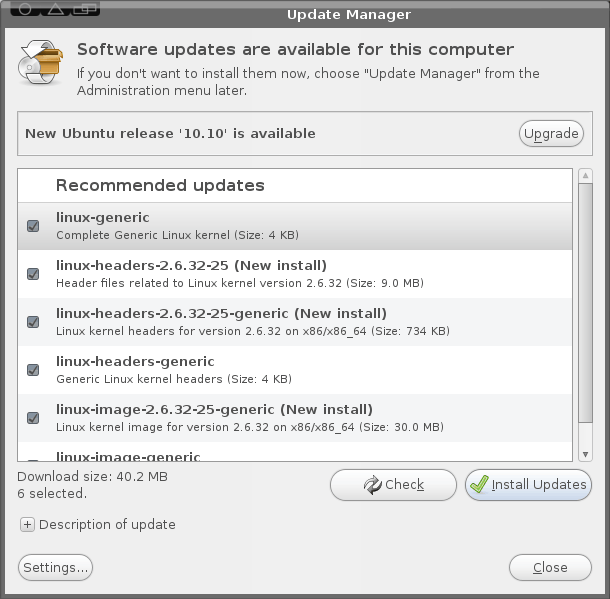
Let’s tackle this task from the GUI tool first (as that is how most will want to do this anyway). The first step is to open up the update manager in in “development release” mode. To do this hit Alt-F2 and type update-manager --devel-release and hit Enter. When you do this the update manager will open with a new addition – the Upgrade button (see Figure 1).
Before you actually hit the Upgrade button, you MUST install any and all updates for your system. If there are none listed click the Check button first. If you see any updates go ahead and click Install Updates and allow those updates to finish. NOTE: If the updates require a reboot, do so BEFORE you continue on to the upgrade.
Once you have completed all updates it is then safe to click the Upgrade button. Walk through the steps for this upgrade (they are very straight-forward) and reboot when completed.
From command line
Believe it or not, upgrading from command line is just as easy as it is from the GUI tool. The first step is to update your system. So open up a terminal window and issue these two commands:
sudo apt-get update
sudo apt-get upgrade

Of course, you will have to enter your sudo password for the first command. Once that is complete you may need to restart your computer (depending on if the kernel is updated or not). After that, you are ready for the upgrade. The first step is to issue the following command:
sudo apt-get install update-manager-core
Now we need to make a simple edit to the /etc/update-manager/release-upgrades. This file determines the default behavior for the release upgrader. The line you need to change is at the bottom of this file. Change it from:
Prompt=lts
to
Prompt=normal
Save and close that file and then issue the command:
sudo do-release-upgrade -d
When prompted, click Y to continue on with the upgrade. Once the upgrade is complete, you will need to restart you computer.
Final thoughts
Linux does make it easy to upgrade from release to release. I have run these upgrades many times and only rarely have I encountered a problem. Does that mean they are 100% guaranteed? No. Things happen…so please, make sure you backup all of your data before attempting this process.

© Jack Wallen for gHacks Technology News, 2010. | Permalink | Add to del.icio.us, digg, facebook, reddit, twitter
Post tags: , , , ,

"

20 de abr. de 2010

10 ways to make your Samba life easier

10 ways to make your Samba life easier: "
Samba allows Linux, Windows, and Mac to communicate with one another, but it has a reputation for being tricky to configure and administer. Here are some ways to reduce Samba headaches.


15 de abr. de 2010

Create a Persistent Bootable Ubuntu USB Flash Drive

Create a Persistent Bootable Ubuntu USB Flash Drive: "
Don’t feel like reinstalling an antivirus program every time you boot up your Ubuntu flash drive? We’ll show you how to create a bootable Ubuntu flash drive that will remember your settings, installed programs, and more!

10 Ferramentas linux imperdiveis para reparação / recuperação de sistemas

Deixo aqui uma lista de ferramentas que nos podemos socorrer quando necessitamos de reparar ou recuperar um disco ou sistema operativo ou limpar uma máquina que sofreu de uma ataque de viroses.

1: Knoppix

Knoppix  e uma distribuição completa que corre apartir de um CD com um GUI muito intuitivo. Permite montar um drive e copia toda a informação nela contida.

2: Trinity Rescue Kit

Trinity Rescue Kit  Capaz de correr apartir de uma pen USB, permite executar executar diversos antivirus numa máquina infectada tais como clamav, antivir, bitdefender. Esta distribuição não te Gui por isso requer algo conhecimento dos comandos de linux


13 de abr. de 2010

Luckybackup: Linux backup made easy

Luckybackup: Linux backup made easy: "
There are a lot of backup tools out there. From the overly simple to the overly complex. Many of those backup tools go unnoticed and unused. Some of them get recognized as the outstanding projects they are. One of those tools is Luckybackup. This tool was awarded Sourceforge’s best new project of 2009. There is a reason for that. Luckybackup is a simple to use backup tool that can backup both to a local machine and to a remote machine – with a user-friendly gui and all the features you would expect in a backup tool.
You might think that Luckybackup is a tool only an end-user could love. Not so. Although Luckybackup is simple to use, open source, and free it’s a worthy candidate for business backup as well. Oh sure, you’re not going to image your machines with this backup tool, but you can backup your data. In this article I am going to show you how to install and use Luckybackup.

9 de abr. de 2010

Microsoft to bring Linux APT/RPM-like application publishing platform (CoApp) to Windows

Microsoft to bring Linux APT/RPM-like application publishing platform (CoApp) to Windows: "
Filed under: , , , , ,
After a decade of vehement distrust for its open source cousin, Microsoft looks like it is finally ready to embrace one of the features that makes Linux and its variants so damn desirable.


Speaking frankly, Garrett Serack of Open Source Development at Microsoft laments the current state of open source package management and installation on the Windows platform. It's time for things to change, he says -- and, if you're a developer or open source aficionado, the Common Opensource Application Publishing Platform (CoApp) does sound pretty damn compelling.


Qubes uses virtualization, sandboxing to deliver a more secure desktop OS

Qubes uses virtualization, sandboxing to deliver a more secure desktop OS: "

It's probably a safe assumption that if a project to design a new operating system involved an experienced security researcher that the goal would be an OS which is darn near bulletproof. That's exactly what Joanna Rutkowska is gunning for with Qubes, which she's pegged for release later this year.

Qubes is a bit different from the desktop OSes most of us are familiar with, though it looks similar. It's built on Fedora and Xen and aims to deliver a more secure desktop through the use of sandboxing and 'App VMs.' Each VM is isolated, though you're still able to do pass data between them (via secure copy and paste).

There's a price to pay in terms of system resources for the added security, but it's reasonable. A typical App VM uses about 400MB of memory but can run a handful of apps in that space (e.g. Firefox, Thunderbird, and OpenOffice).

Qubes is currently in its alpha stage right now, but Rukowska say's it's very usable. To try it out, you'll need to follow the instructions posted on the wiki.

Makes me wonder...With XP mode already available in Windows 7 and the virtualization improvements coming to SP1 and sandboxing becoming more and more common, maybe we'll see something like this in Windows 8. Hey, it's a possibility."

8 de mar. de 2010

Zimbra: Algumas configurações

Algumas configurações uteis após instalação

Entrar no painel de administração https://host:7071/zimbraAdmin/ depois a Class of Service > default
- Features, activar o Instant Messenger
- Preferences – activar “Automatically login to instant messaging services”
- Preferences – activar “Use the GAL when autocompleting addresses”
- Advanced – Definir Quotas para os usuários

24 de fev. de 2010

Zimbra 6.0 e Centos 5.4

1. Instalar Centos
2. Editar /etc/hosts
127.0.0.1 localhost.localdomain localhost
xx.xx.xx.x webmail.domain.xx webmail
3. yum update -y
4. yum install compat-db gmp compat-libstdc++-296 compat-libstdc++-33 libtool-ltdl sysstat
5. yum remove sendmail
6. yum install fetchmail
6. Desactivar os serviços, exim, cups e bluetooth
7. chkconfig --level 0123456 exim off
8. Editar o ficheiro /etc/sudoers e comente a linha “defaults requiretty”
9. Editar o ficheiro /etc/sysconfig/i18n e deletar a linha LANG=”en_US.UTF-8”.
10. Executar
tar xvfz zcs-6.0.1_GA_1816.RHEL5.20090911181524.tgz
cd zcs-6.0.1_GA_1816.RHEL5.20090911181524
11. ./install.sh --platform-override
12 Quase no final da instalação, se tudo correu bem, o zimbra apresentará uma mensagem de erro, a informar que localhost.localdomain é um endereço inválido.
Setting defaults…No results returned for A lookup of localhost.localdomain
Checked nameservers:
XXX.XX.XXX.X
XX.XXX.XX.XXX
Ajuste as configurações de hostname e domain name.
DNS ERROR resolving localhost.localdomain
It is suggested that the hostname be resolveable via DNS
Change hostname [Yes] Please enter the logical hostname for this host [localhost.localdomain] zimbra.dominio.com
DNS ERROR resolving MX for zimbra.dominio.com
It is suggested that the domain name have an MX record configured in DNS
Change domain name? [Yes]
Create Domain: [zimbra.dominio.com] dominio.com
MX: zimbra.dominio.com(XXX.XX.XXX.XX)
Interface: XXX.XX.XXX.XX
Interface: 127.0.0.1
done.

12. Após ajustar o hostname e o domain, será apresentado um menu com várias configurações do zimbra. É necessário fazer algumas configurações
No menu 3) Zimbra Store Recomendo alterar:
4) Admin Password
12) Web server mode – De http para redirect, assim todo o acesso http é automagicamente redirecionado para https, adicionando um pouco mais de segurança para o usuário final.
No menu 1) Common configuration, ajustar o 6) TimeZone
Recomendo passar nos outros menus para verificar se as outras configurações a fim de refletirem o seu ambiente. Observar também se os endereços mostrados correspondem ao seu hostname e domínio.
Após o término da configuração, use a opção “a” para salvar e aplicar as novas configurações. O instalador passará por mais alguns pontos e com sorte, o processo estará finalizado em alguns minutos.

13. E já está

SNMP Ubuntu

Como instalar SNMP no Ubuntu

1. sudo apt-get install snmpd

2. mv /etc/snmp/snmpd.conf /etc/snmp/snmpd.conf.org

3. Criar /etc/snmp/snmpd.conf file:

rocommunity public
syslocation "xxxxxxxxxxxxxx"
syscontact email@localhost

4. Edit /etc/default/snmpd alterar

# snmpd options (use syslog, close stdin/out/err).
SNMPDOPTS='-Lsd -Lf /dev/null -u snmp -I -smux -p /var/run/snmpd.pid 127.0.0.1'

para

# snmpd options (use syslog, close stdin/out/err).
#SNMPDOPTS='-Lsd -Lf /dev/null -u snmp -I -smux -p /var/run/snmpd.pid 127.0.0.1'
SNMPDOPTS='-Lsd -Lf /dev/null -u snmp -I -smux -p /var/run/snmpd.pid -c /etc/snmp/snmpd.conf'

5. /etc/init.d/snmpd restart